Introduction#
Windows introduced a functionality that enables certain apps to restart after a crash or a reboot in the Windows 10 fall creators update.
Behind the scene this functionality uses the RegisterApplicationRestart API to register the active instance of an application for restart. The windows documentation gives some information about how this functionality works
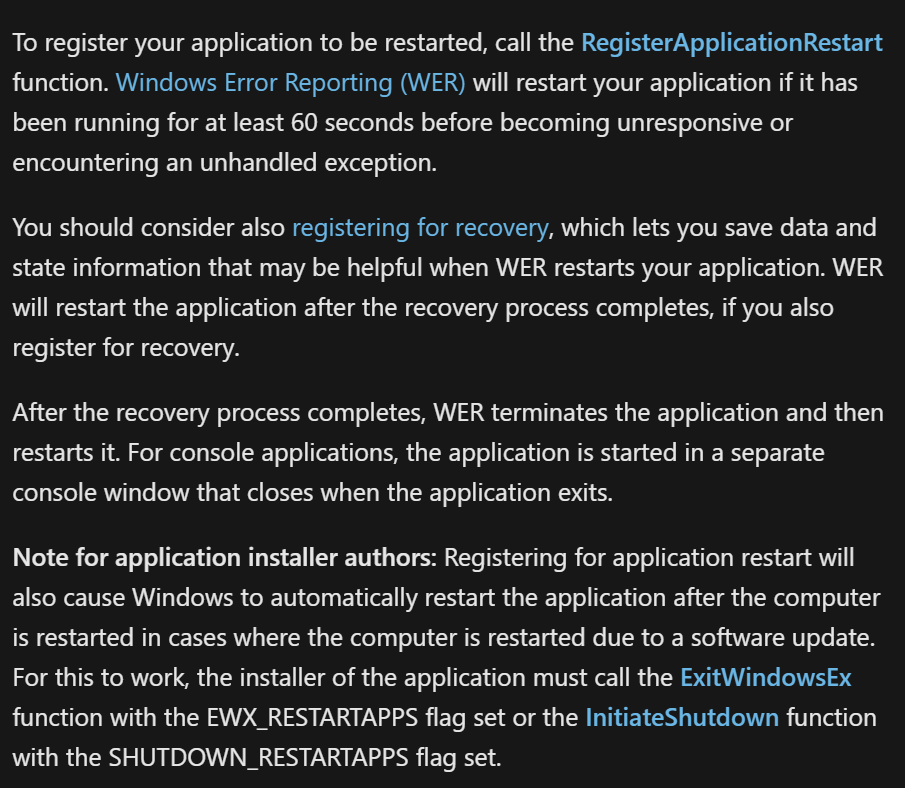
So any app that uses this API can be set to restart automatically if
- Its been running for at least 60 seconds and it crashes.
- The computer restarts or shutdown.
We can see this functionality implemented in some built-in apps such as Notepad.exe or Mspaint.exe
- Notepad.EXE

- MsPaint.EXE

If we try to test this we simply open both mspaint and notepad and keep them running and initate a restart. But After the restart we don't see them launching (suprised)
That's because this functionality needs to be enabled via a setting in the Sign-in options settings.
Enabling RestartApps#
To enable this functionality we have to go to Settings -> Accounts -> Sign-in options and enabled Automatically save my restartable apps and restart them when I sign back in (the description changed slightly accross different versions of windows)
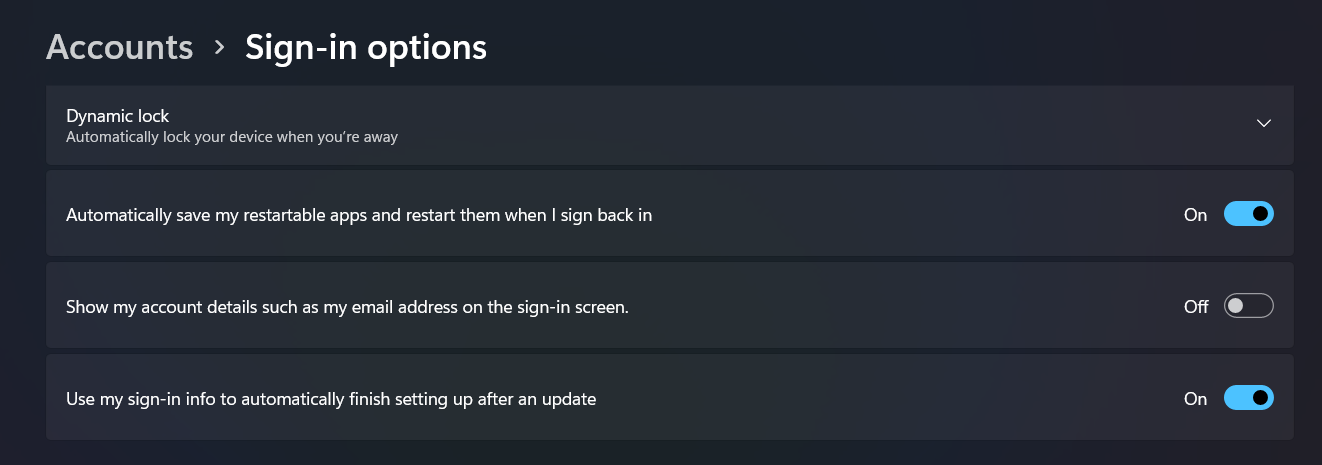
This enables a specific registry value called RestartApps located in HKEY_CURRENT_USER\Software\Microsoft\Windows NT\CurrentVersion\Winlogon

Enbaling this should restart both our notepad.exe and mspain.exe processes.
Note
In previous versions of Windows this feature was bundled with the option
Use my sign-in info to automatically finish setting my device after an update or restartand controlled by a different registry keys and the group policySign-in and lock last interactive user automatically
Give the following a read for more information 1 2
RegisterAppRestart Example#
Just to get the idea across even more. Here is a very simple example that registers itself and wait for input (to not kill the app). Executing this binary and restarting the machine should restart it with the commandline SUPER_SECRET_WHOAMI_APT.
#include <windows.h>
#include <stdio.h>
#include <iostream>

void wmain(int argc, WCHAR* argv[])
{
    HRESULT hr;

    wprintf(L"Registering for restart...\n");

    hr = RegisterApplicationRestart(L"SUPER_SECRET_WHOAMI_APT", 0);
    if (FAILED(hr))
    {
        wprintf(L"RegisterApplicationRestart failed, 0x%x\n", hr);

    }

    int x;
    std::cin >> x;

}
Taking It A Step Further With Compatibility#
While creating or modifying our own application to leverage this is fun and useful, it might still be tedious especially for older applications. Thankfully windows had the same thought and created a compatibility option to allow older apps to make use of this feature.
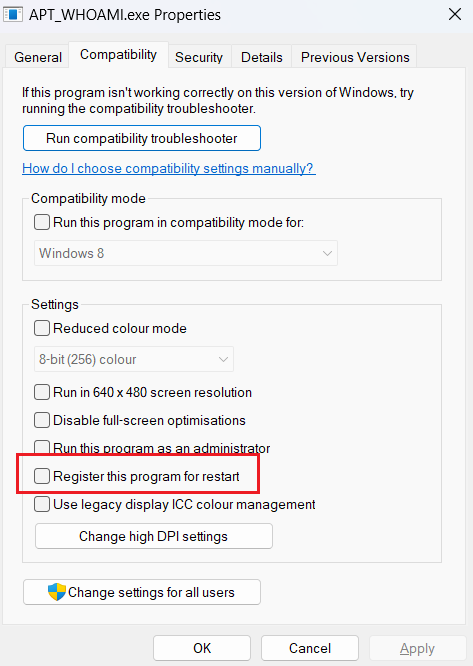
If you right click on any binary and you go to the compatibility tab. You should see the option Register this program for restart. To understand this we need to take a little detour to understand Compatibility layers and talk about SHIMs.
Compatibility Layers & SHIMs#
You're probably familiar with the compatibility tab when you right click on a file. It allows you to change the "behavior" of a binary to by applying a compatibility mode to make it think that it's running on Windows 8 or Windows XP for example.
What this feature is doing behind the scene, is creating an association between the binary and compatibility layers in the registry. By modifying the following key HKEY_CURRENT_USER\Software\Microsoft\Windows NT\CurrentVersion\AppCompatFlags\Layers (for users) or HKEY_LOCAL_MACHINE\Software\Microsoft\Windows NT\CurrentVersion\AppCompatFlags\Layers (for all users)
A Compatibility layer is simply a grouping of 1 or many SHIMS, FLAGS or QUIRKS. Let's take as an example a binary that has the Windows 8 compatibility mode. Once set, the layer registry key will get updated with the value ~ WIN8RTM

As compatibility layers are part of the Application SHIM engine, they are defined in the sysmain.sdb. Using a utility like SDB Explorer we can parse and extract the content of the database and look exactly at what the layer WIN8RTM actually uses.
LAYER: Win8RTM
      NAME: Win8RTM
      FIX_ID: 7e123021-4427-4a5a-bbc5-fc7753647d89
      OS_VERSION_VALUE: 100794368
      SHIM_REF: ElevateCreateProcess
         NAME: ElevateCreateProcess
         SHIM_TAGID: 0x28D08
      SHIM_REF: EmulateSortingWindows61
         NAME: EmulateSortingWindows61
         SHIM_TAGID: 0x29520
      SHIM_REF: FailObsoleteShellAPIs
         NAME: FailObsoleteShellAPIs
         SHIM_TAGID: 0x29A1E
      SHIM_REF: GlobalMemoryStatus2GB
         NAME: GlobalMemoryStatus2GB
         SHIM_TAGID: 0x2A958
      SHIM_REF: HandleBadPtr
         NAME: HandleBadPtr
         SHIM_TAGID: 0x2AA8C
      SHIM_REF: RedirectBDE
         NAME: RedirectBDE
         SHIM_TAGID: 0x2D9AE
      SHIM_REF: RedirectMP3Codec
         NAME: RedirectMP3Codec
         SHIM_TAGID: 0x2DB66
      SHIM_REF: SyncSystemAndSystem32
         NAME: SyncSystemAndSystem32
         SHIM_TAGID: 0x2EDF0
         COMMAND_LINE: wing.dll;wing32.dll
      SHIM_REF: Win8RTMVersionLie
         NAME: Win8RTMVersionLie
         SHIM_TAGID: 0x304EA
      SHIM_REF: VirtualRegistry
         NAME: VirtualRegistry
         SHIM_TAGID: 0x2F540
         COMMAND_LINE: Win8RTMLie
      SHIM_REF: FaultTolerantHeap
         NAME: FaultTolerantHeap
         SHIM_TAGID: 0x29B68
      SHIM_REF: WRPDllRegister
         NAME: WRPDllRegister
         SHIM_TAGID: 0x31406
      SHIM_REF: WRPMitigation
         NAME: WRPMitigation
         SHIM_TAGID: 0x3143C
         COMMAND_LINE: NoManifestCheck
      SHIM_REF: DXMaximizedWindowedMode
         NAME: DXMaximizedWindowedMode
         SHIM_TAGID: 0x26808
      SHIM_REF: DetectorDWM8And16Bit
         NAME: DetectorDWM8And16Bit
         SHIM_TAGID: 0x284A2
      SHIM_REF: FixDisplayChangeRefreshRate
         NAME: FixDisplayChangeRefreshRate
         SHIM_TAGID: 0x29D02
      FLAG_REF: NoGhost
         NAME: NoGhost
         FLAG_TAGID: 0x33852
      FLAG_REF: NoPaddedBorder
         NAME: NoPaddedBorder
         FLAG_TAGID: 0x3399E
      FLAG_REF: AllocDebugInfoForCritSections
         NAME: AllocDebugInfoForCritSections
         FLAG_TAGID: 0x3213A
      DATA: SHIMFLAGS
         NAME: SHIMFLAGS
         DATA_VALUETYPE: 4
         DATA_DWORD: 1536
      GENERAL: True
As we now understand, the simple Run This in Windows 8 from the compatibility tab, is actually applying 16 SHIMS and 3 FLAGS.
Back to our original idea and the option called Register this program for restart. Selecting this apply a layer called REGISTERAPPRESTART. Looking up the definition and we see that its using a single shim with the same name.
LAYER: RegisterAppRestart
    NAME: RegisterAppRestart
    FIX_ID: ebc44314-264f-41bb-8070-b66a8782e176
    LAYER_PROPAGATION_OFF: True
    SHIM_REF: RegisterAppRestart
        NAME: RegisterAppRestart
        SHIM_TAGID: 0x2DC30
    GENERAL: True
While the name is a clear indication of what this SHIM actually do. We're actually lucky as this is one of the few SHIM's / Layers with a description.
This shim calls RegisterApplicationRestart so the app can restart after a user signs out and back in. The shim reference's COMMAND_LINE attribute can specify the command line arguments to use when registered. If the token "|COPY_COMMAND_LINE|" is used the app will be registered with the same command line that started the process. If missing then an empty command line is used.From the description we gather that by applying this SHIM to our application, the System will actually register the app for restart without us adding any code :) (We can even double check using APIMonitor)
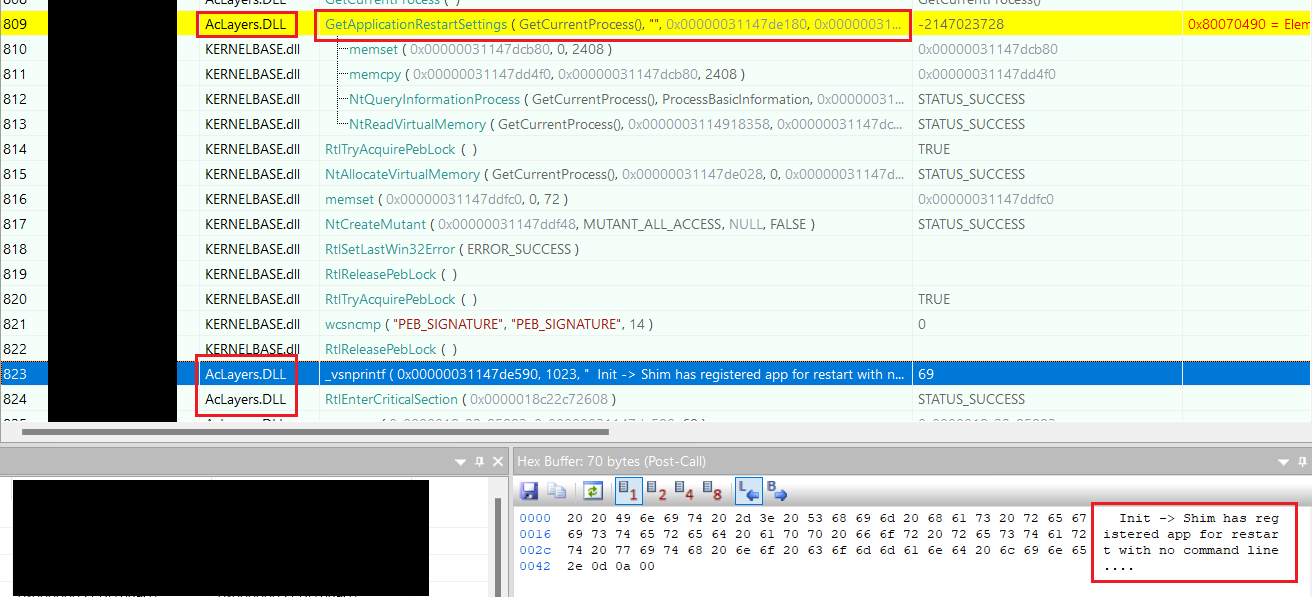
Putting this into practice, we can pick any application that doesn't use the RegisterApplicationRestart API and apply this SHIM to it and we'll see it restart similar to the notepad and mspaint example.
We now have a persistence without modifying any code which is great but we can take this a step further by abusing built-in application fixes that are part of sysmain.sdb
Living Of The RegisterAppRestart SHIM#
As I described in my writeup Living-Of-The-SHIMS, we can create applications that mimic already built-in application fixe conditions in order to trick the SHIM engine into applying the SHIM to our app.
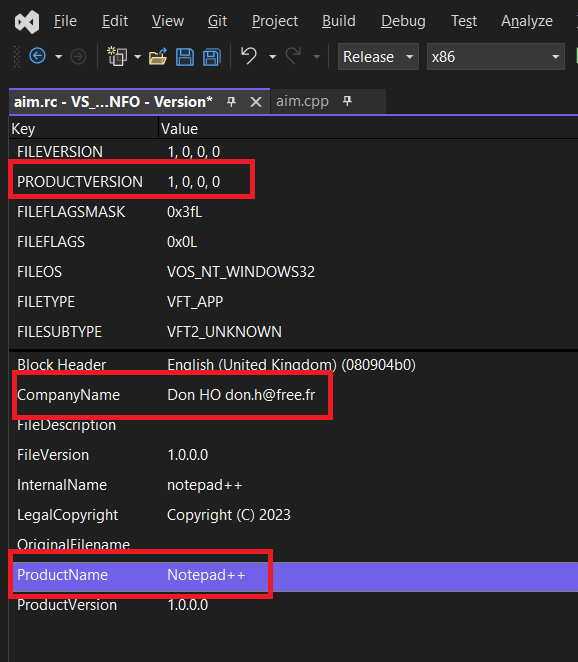
One such applications is Notepad++. Recent versions of the application make use of the RegisterApplicationRestart but older versions did not. So a fix was added to older versions of Notepad++ to make use of this feature by applying the RegisterAppRestart SHIM. Here is the definition.
EXE: notepad++.exe
   NAME: notepad++.exe
   APP_NAME: Notepad++
   VENDOR: Don HO don.h@free.fr
   EXE_ID: b38c7ca0-382f-4e68-84b2-20bc6f9bd0d1
   APP_ID: 04841447-307d-47a8-a62d-d21ca44e6c99
   MATCHING_FILE: *
      NAME: *
      COMPANY_NAME: Don HO don.h@free.fr
      PRODUCT_NAME: Notepad++
      UPTO_BIN_PRODUCT_VERSION: 2251799813685247
   SHIM_REF: RegisterAppRestart
      NAME: RegisterAppRestart
      SHIM_TAGID: 0x2DC30
If we create a binary and modified the PE metadata to align with the conditions described above in the MATCHING_FILE section. We would achieve the same effect as someone enabling the compatibility tab feature but without touching the registry for added "stealth".
We can check that it worked by looking for EID 505 in the Microsoft-Windows-Application-Experience/Program-Telemetry EventLog
- <Event xmlns="http://schemas.microsoft.com/win/2004/08/events/event">
- <System>
  <Provider Name="Microsoft-Windows-Application-Experience" Guid="{eef54e71-0661-422d-9a98-82fd4940b820}" />
  <EventID>505</EventID>
  <Version>0</Version>
  <Level>4</Level>
  <Task>0</Task>
  <Opcode>0</Opcode>
  <Keywords>0x800000000000000</Keywords>
  <TimeCreated SystemTime="2023-12-11T01:24:46.7984411Z" />
  <EventRecordID>75908</EventRecordID>
  <Correlation />
  <Execution ProcessID="27268" ThreadID="27296" />
  <Channel>Microsoft-Windows-Application-Experience/Program-Telemetry</Channel>
  <Computer>APTNAS</Computer>
  <Security UserID="S-1-5-21-333333333-5654654564654-025858969-1001" />
  </System>
- <UserData>
- <CompatibilityFixEvent xmlns="http://www.microsoft.com/Windows/Diagnosis/PCA/events">
  <ProcessId>27268</ProcessId>
  <StartTime>2023-12-11T01:24:45.7876222Z</StartTime>
  <FixID>{b38c7ca0-382f-4e68-84b2-20bc6f9bd0d1}</FixID>
  <Flags>0x80010101</Flags>
  <ExePath>C:\Users\xxxx\xxxxx\Release\notepad++.exe</ExePath>
  <FixName>Notepad++</FixName>
  </CompatibilityFixEvent>
  </UserData>
  </Event>