Overview#
UWP and Packaged desktop applications have the ability to create startup tasks in order to execute at startup. The information about these tasks aren't stored in one of the known registry keys for startup persistence (ex: Run Keys) and is currently not shown by utilities such as autoruns.
Below is a detailed description on how these tasks work.
Note: Thanks to James and Adam for initiating the discussion around this on Twitter.
Use case (Phone Link)#
If we take an example UWP application such as the built-in Phone Link app. We can see that this application is listed in the 'Startup Apps' section of task manager.
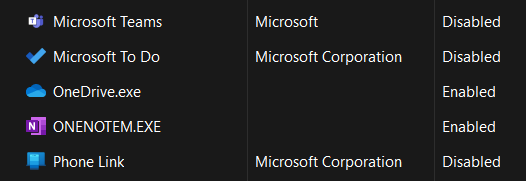
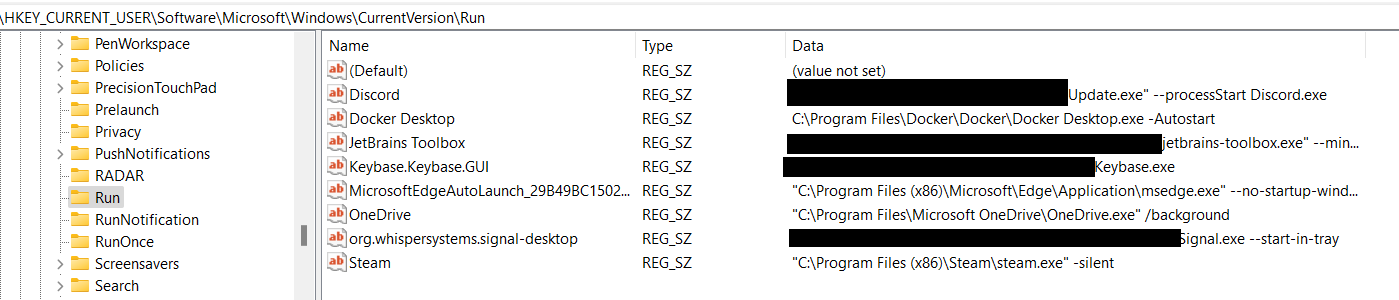
But taking a look at the Run key where these apps are usually configured to start we don't seem to find references to it.

Tracing W/ Procmon#
To know more, let's take a look with Procmon on how task manager is able to Enable/Disable these apps from startup.

We can see requests being made to HKEY_CURRENT_USER\Software\Classes\Local Settings\Software\Microsoft\Windows\CurrentVersion\AppModel\SystemAppData\Microsoft.YourPhone_8wekyb3d8bbwe\YourPhone.Start which contains the following values.

From the naming of the values it indeed seems that this is the location where we can enable or disable these startup tasks. Taking other UWP apps as example we can find similar keys.
-
Windows Terminal:
HKEY_CURRENT_USER\Software\Classes\Local Settings\Software\Microsoft\Windows\CurrentVersion\AppModel\SystemAppData\Microsoft.WindowsTerminal_8wekyb3d8bbwe\StartTerminalOnLoginTask -
Microsoft Teams:
HKEY_CURRENT_USER\Software\Classes\Local Settings\Software\Microsoft\Windows\CurrentVersion\AppModel\SystemAppData\MicrosoftTeams_8wekyb3d8bbwe\TeamsStartupTask -
XBOX App:
HKEY_CURRENT_USER\Software\Classes\Local Settings\Software\Microsoft\Windows\CurrentVersion\AppModel\SystemAppData\Microsoft.GamingApp_8wekyb3d8bbwe\Xbox.App.Tasks.FullTrustComponent
While this answer our question how are these applications are able to start at the start of Windows. We still don't know what executables they're going to run or what do the values exactly mean. Let's take a closer look.
Windows Startup Extension#
Scrolling a bit on MSDN we find the following documentation about a class called StartupTask. Which describe exactly the behaviour that we were just investigating.
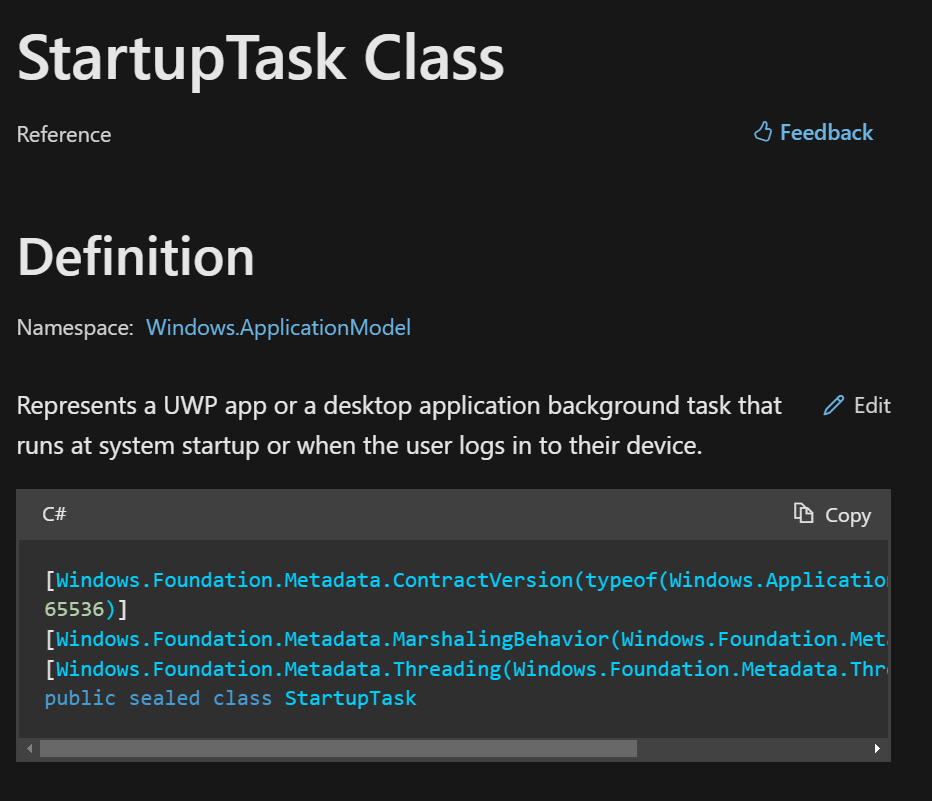
And a couple of lines down we find this interesting information.

This tells us that the startup definition is stored inside the manifest. Which luckily for us, it can easily be extracted using a simple PowerShell cmdlet called Get-AppxPackageManifest. So let's do that next.
Finding The Culprit#
Taking the same Phone Link UWP app example. We can execute the following command to extract the manifest.
(Get-AppxPackage -Name "*phone*" | Get-AppxPackageManifest).InnerXmlLooking at the content of the XML, specifically the StartupTask we find the following definition. Which indicates that this UWP has a startup task to start at windows Startup.
<uap5:Extension Category="windows.startupTask">
    <uap5:StartupTask TaskId="YourPhone.Start" Enabled="true" DisplayName="ms-resource:AppName" />
</uap5:Extension>
From this output we can conclude that the registry path related to the configuration of an app startup task is in the following format.
HKEY_CURRENT_USER\Software\Classes\Local Settings\Software\Microsoft\Windows\CurrentVersion\AppModel\SystemAppData\<PackageFamilyName>\<TaskId>\`Here are a couple of examples from different applications
- Windows Terminal
<uap5:Extension Category="windows.startupTask">
    <uap5:StartupTask TaskId="StartTerminalOnLoginTask" Enabled="false" DisplayName="ms-resource:AppName" />
</uap5:Extension>- Microsoft Teams
<desktop:Extension Category="windows.startupTask" Executable="msteams_autostarter.exe" EntryPoint="Windows.FullTrustApplication">
    <desktop:StartupTask TaskId="TeamsStartupTask" Enabled="true" DisplayName="Microsoft Teams" />
</desktop:Extension>- Xbox Gaming App
<uap5:Extension Category="windows.startupTask" Executable="XboxPcAppFT.exe" EntryPoint="Windows.FullTrustApplication" uap10:Parameters="/startupLaunch">
    <uap5:StartupTask TaskId="Xbox.App.Tasks.FullTrustComponent" Enabled="false" DisplayName="Xbox App Services" />
</uap5:Extension>
Enumerating All UWP / Packaged Destop Applications Startup Tasks#
To enumerate all Startup tasks, I wrote this small PowerShell snippet.
$packages = Get-AppxPackage
foreach ($package in $packages) {
    $packageName = $package.Name

    # Data
    $ext = ($package | Get-AppxPackageManifest).package.Applications.Application.Extensions.Extension | Where-Object { $_.Category -eq "windows.startupTask" }
    $task = ($package | Get-AppxPackageManifest).package.Applications.Application.Extensions.Extension.StartupTask
    if ($ext -ne $null -and $ext -ne '') {

        $Executable = $ext.Executable
        $EntryPoint = $ext.EntryPoint
        $Parameters = $ext.Parameters
        $TaskId = $task.TaskId
        $Enabled = $task.Enabled
        $DisplayName = $task.DisplayName

        Write-Host "Package Name: $packageName"

        if ($Executable -ne $null -and $Executable -ne '') {
            Write-Host "Startup Task Executable: $Executable"
        }
        if ($EntryPoint -ne $null -and $EntryPoint -ne '') {
            Write-Host "Startup Task EntryPoint: $EntryPoint"
        }
        if ($Parameters -ne $null -and $Parameters -ne '') {
            Write-Host "Startup Task Parameters: $Parameters"
        }
        if ($TaskId -ne $null -and $TaskId -ne '') {
            Write-Host "Startup Task ID: $TaskId"
        }
        if ($Enabled -ne $null -and $Enabled -ne '') {
            Write-Host "Startup Task Enabled Status: $Enabled"
        }
        if ($DisplayName -ne $null -and $DisplayName -ne '') {
        Write-Host "Startup Task DisplayName: $DisplayName"
        }
        Write-Host "------------------------"

    }
}
Below is the results from my lab setup
Package Name: Microsoft.WindowsTerminal
Startup Task ID: StartTerminalOnLoginTask
Startup Task Enabled Status: false
Startup Task DisplayName: ms-resource:AppName

------------------------

Package Name: 91750D7E.Slack
Startup Task Executable: app\Slack.exe
Startup Task EntryPoint: Windows.FullTrustApplication
Startup Task ID: SlackStartup
Startup Task Enabled Status: true
Startup Task DisplayName: Slack

------------------------

Package Name: Microsoft.GamingApp
Startup Task Executable: XboxPcAppFT.exe
Startup Task EntryPoint: Windows.FullTrustApplication
Startup Task Parameters: /startupLaunch
Startup Task ID: Xbox.App.Tasks.FullTrustComponent
Startup Task Enabled Status: false
Startup Task DisplayName: Xbox App Services

------------------------

Package Name: MicrosoftTeams
Startup Task Executable: msteams_autostarter.exe
Startup Task EntryPoint: Windows.FullTrustApplication
Startup Task ID: TeamsStartupTask
Startup Task Enabled Status: true
Startup Task DisplayName: Microsoft Teams

------------------------

Package Name: SpotifyAB.SpotifyMusic
Startup Task Executable: SpotifyStartupTask.exe
Startup Task EntryPoint: Windows.FullTrustApplication
Startup Task ID: Spotify
Startup Task Enabled Status: false
Startup Task DisplayName: Spotify

------------------------

Package Name: Microsoft.SkypeApp
Startup Task Executable: Skype\Skype.exe
Startup Task EntryPoint: Windows.FullTrustApplication
Startup Task ID: SkypeStartup
Startup Task Enabled Status: false
Startup Task DisplayName: Skype

------------------------

Package Name: 5319275A.WhatsAppDesktop
Startup Task Executable: WhatsApp.exe
Startup Task EntryPoint: WhatsApp.App
Startup Task ID: WhatsAppStartupTask
Startup Task Enabled Status: false
Startup Task DisplayName: WhatsApp

------------------------

Package Name: Microsoft.PowerAutomateDesktop
Startup Task Executable: PAD.Console.Host.exe
Startup Task EntryPoint: Windows.FullTrustApplication
Startup Task ID: AutoStartTask
Startup Task Enabled Status: true
Startup Task DisplayName: Power Automate Desktop

------------------------

Package Name: Microsoft.Todos
Startup Task ID: ToDoStartupId
Startup Task Enabled Status: false
Startup Task DisplayName: ms-resource:app_name_ms_todo

------------------------

Package Name: AppUp.IntelGraphicsExperience
Startup Task Executable: GCP.ML.BackgroundSysTray\IGCCTray.exe
Startup Task EntryPoint: Windows.FullTrustApplication
Startup Task ID: GCPStartupId
Startup Task Enabled Status: true
Startup Task DisplayName: Intel® Graphics Command Center Startup Task

------------------------

Package Name: Microsoft.YourPhone
Startup Task ID: YourPhone.Start
Startup Task Enabled Status: true
Startup Task DisplayName: ms-resource:AppName
------------------------
Registry Configuration#
Information about the state of an application is stored in the registry, inside the <TaskId> key. It contains the following values
LastDisabledTime(REG_QWORD): Contains a timestamp of when was the last this startup task was disabledState(REG_DWORD): Indicates the current state of the task and can hold on the following values- 0: The task is disabled.
- 1: The task was disabled by the user. It can only be re-enabled by the user.
- 2: The task is enabled.
- 3: The task is disabled by the administrator or group policy. Platforms that don't support startup tasks also report DisabledByPolicy.
- 4: The task is enabled by the administrator or group policy.
UserEnabledStartupOnce(REG_DWORD)